The Trainline app is a helpful tool for anyone who travels by train. It makes it easy to check train times, buy tickets, and keep your tickets right on your phone. Millions of people in the UK and other parts of Europe use it because it saves time and shows live updates about delays or changes. But sometimes the app stops working well. You might see it crash, freeze, or refuse to load your tickets. This can feel very stressful, especially when you need to catch a train soon.
In this article, we explain the most common problems with the Trainline app and give clear, simple steps to fix them. We use easy words and short sentences so everyone can understand. Most fixes take only a few minutes. Follow them one by one, and you will likely solve the issue quickly.
Why Does the Trainline App Sometimes Stop Working?
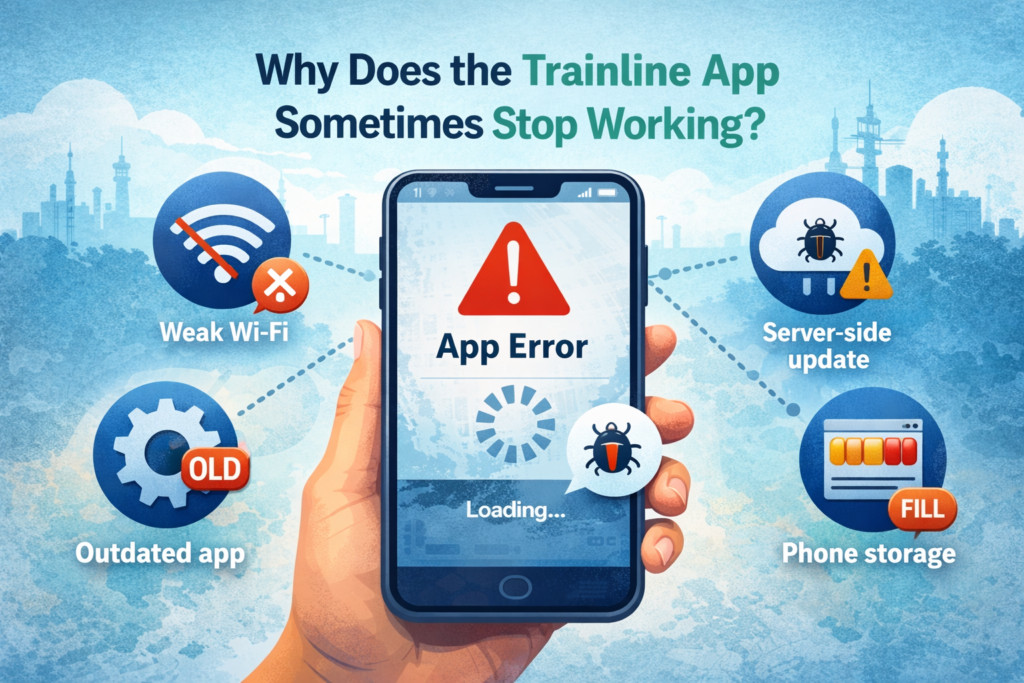
Apps like Trainline need a good internet connection, the right phone settings, and the latest version to run smoothly. Problems often come from weak Wi-Fi, an old app version, full phone storage, or small bugs that the company fixes in updates. Sometimes the issue is on Trainline’s side, like during a big update or when many people use the app at once. Other times, it is something simple on your phone.
No matter the cause, start with the basic checks. These solve most problems for many users.
Start with These Easy First Steps for Any Problem
Before you try anything hard, do these quick things. They fix a lot of issues without much effort.
First, check your internet. The app needs a strong connection to load times, tickets, or payments. Open another app like a browser or YouTube. If it loads slowly or not at all, your internet is the problem. Turn Wi-Fi off and on again, or switch from Wi-Fi to mobile data. You can also turn on airplane mode for ten seconds and turn it off. This refreshes your connection.
Next, close the app fully and open it again. On most phones, swipe up from the bottom of the screen and push the Trainline app card away. Then tap the icon to start it fresh.
Restart your phone too. Turn it all the way off, wait one full minute, and turn it back on. This clears small glitches that build up over time.
Now check for updates. Open your app store—Google Play for Android phones or the App Store for iPhones. Search for “Trainline.” If you see an “Update” button, tap it. New versions often fix crashes, loading problems, and other bugs.
If the problem is still there after these steps, move to the specific fixes below.
Problem 1: The App Crashes or Closes by Itself
Many people say the app opens for a second and then shuts down. Or it freezes when you tap something. This happens more on older phones or after a big phone update.
First, make sure your phone has enough free space. Go to your phone settings and look at storage. If it is almost full, delete photos, videos, or apps you do not need. Apps need space to work right.
Clear the app cache next. This removes temporary files that can cause trouble without deleting your login or tickets. On Android, go to Settings, then Apps, find Trainline, tap Storage, and choose Clear Cache. On iPhone, you might not see this option, so try the next step.
If clearing cache does not help, delete the app and install it again. This is safe because your tickets link to your account or email. Go to your app store, find Trainline, and uninstall it. Then install it fresh. Log in again, and most crashes stop.
Problem 2: The App Stays Stuck on Loading or Spinning Wheel
You open the app, and it shows “loading” forever with a spinning circle. Nothing moves forward.
Internet is the main cause here again. Even if other apps work, Trainline needs a very stable connection for live data. Try a different network. Public Wi-Fi can block some apps, so use your home Wi-Fi or mobile data.
Force close the app and reopen it. If that does not work, restart your phone.
Check for updates one more time. Trainline often fixes loading bugs in new releases.
If you still see the spinning wheel, wait a little while and try again later. Sometimes Trainline’s servers have a short issue during busy times or updates.
Problem 3: Your Tickets Do Not Show Up or the Barcode Looks Blank
This is one of the scariest problems. You bought a ticket, but when you open the app, it is not there, or the screen is empty.
Start by checking your email. Trainline always sends a confirmation message with a link that says “View in app.” Tap that link on your phone. It should open the app and show your ticket right away.
Make sure you are signed in to the correct account. If you booked as a guest, use the email link. If you have an account, log in fully.
Go to the “My Tickets” part of the app and pull the screen down to refresh it. This pulls new data from the servers.
If the ticket is missing, open a web browser on your phone or computer and go to the Trainline website. Log in there and look under your bookings. You can often see or download the ticket from the site.
For season tickets or digital Railcards, check if your phone meets the needs. It should run a recent version of iOS or Android.
Problem 4: You Cannot Log In to Your Account
The app says wrong password, or it keeps going back to the login screen in a loop.
Use the “Forgot password” link. Enter your email, and Trainline will send you steps to make a new password.
If you sign in with Apple, Google, or Facebook, make sure those accounts work fine on your phone.
Sometimes business accounts have special issues. If you use Trainline for work, your company might need to update to a new system before the app login works. In that case, use the website for now.
Clear cache or reinstall the app if login still fails after a password reset.
Problem 5: You Cannot Book a Ticket or Payment Does Not Work
You choose your train, add your card, but it shows an error like “Something’s off track” or goes back to the start.
Check your internet first—payments need a good connection.
Make sure your card details are correct and up to date. Cards can expire, or there might not be enough money. Try a different card if possible.
Some ticket types, like open returns or certain special fares, work better on the website than in the app. If the app keeps failing, open a browser and book there.
Look for alerts in the app about strikes, engineering work, or timetable changes. These can stop some bookings.
Problem 6: The App Shows Wrong Train Times, No Results, or Missing Platforms
You search for a trip, but no trains appear. Or the times and platforms look wrong.
This often happens because of real issues on the railway. Check the Trainline rail status page or National Rail website for updates on delays, cancellations, or works.
Type station names carefully. The app gives suggestions—pick one from the list instead of typing free.
Refresh the search by pulling down on the screen. Live data updates often.
If platforms are missing, some users say this started after an app update. Reinstalling sometimes helps, but if not, check the website for platform info.
More Tips to Keep the App Running Smoothly
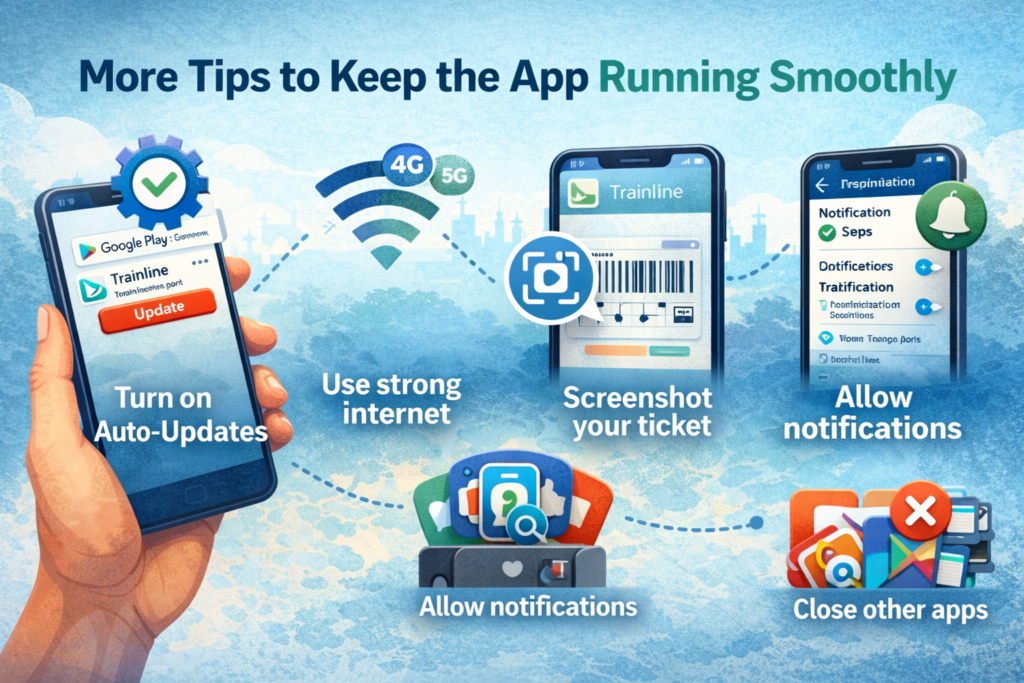
Keep auto-updates turned on in your app store so you always have the newest version.
Use strong internet when you book or check important trips.
Take a screenshot of your ticket barcode as a backup, just in case.
Allow notifications in your phone settings. This way, you get alerts about delays.
If the app feels slow, close other running apps to free up phone power.
When You Need Extra Help from Trainline
If you try all these steps and nothing works, reach out to support. Go to support.thetrainline.com on your phone or computer. Look through their help articles first—they have sections for tickets, delays, payments, and accounts.
You can send a message through their contact form. Tell them what phone you use, the app version, and exactly what happens. Add screenshots if you can take them.
If you have a ticket problem while at the station, speak to staff there. They can often help you board or fix simple issues.
For refunds or changes, check the help pages under “Ticket refunds and changes.”
Final Words
The Trainline app makes train travel much easier most of the time. When it has problems, they are usually small and easy to fix with basic steps like checking internet, updating, restarting, or reinstalling.
Stay calm if something goes wrong. Work through the steps in order, and you will get back to smooth booking and traveling. Have a safe and happy journey!
Disclaimer: This article provides troubleshooting tips for common issues with the Trainline app. While these solutions are effective for most users, some problems may require additional assistance from Trainline support. The information in this article is based on general experiences and is not endorsed or verified by Trainline.
Explore More
- How to Fix Asda App Not Working: Troubleshooting Guide
- Virgin Money App Not Working on iPhone or Android? Here’s What to Do
- Why is My Hive App Not Working? Troubleshooting Tips for iPhone, Android, and UK Users
