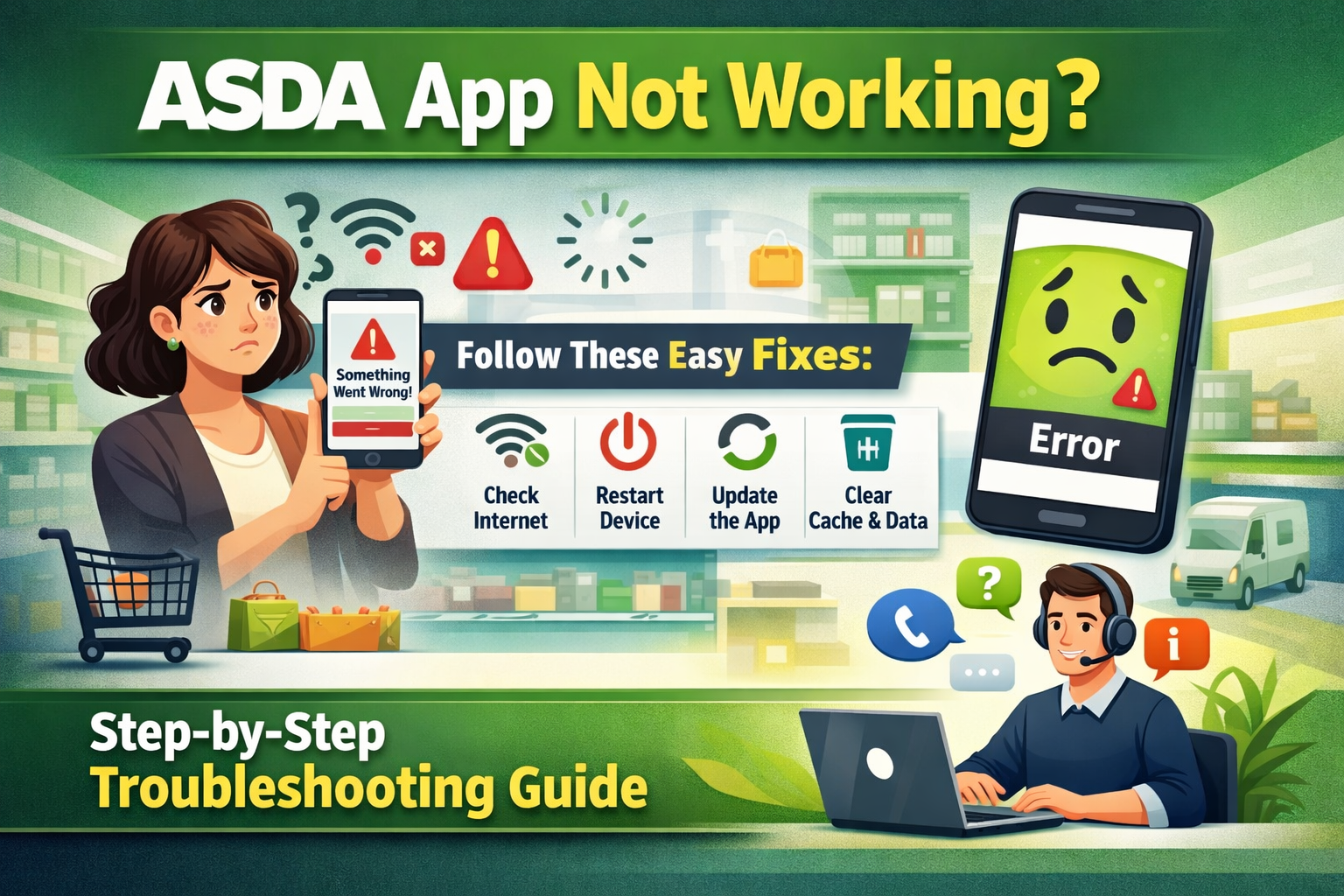
The Asda app is a very helpful tool for shopping at Asda. It lets you buy groceries online, check prices, find deals, scan items in store, earn rewards, and get things delivered to your home. Many people in the UK use it every week to make shopping easy and fast. But sometimes the app stops working. It might not open, freeze, show errors like “Something Went Wrong,” or have problems with login, checkout, or loading pages. This can be very annoying when you need to do your shopping quickly.
Do not worry. Most problems with the Asda app are simple to fix. In this guide, we will walk you through easy steps to solve them. We use plain words so everyone can understand. Follow the steps one by one. Start with the easy ones first. Many users fix their app this way without calling anyone.
Why Does the Asda App Stop Working?
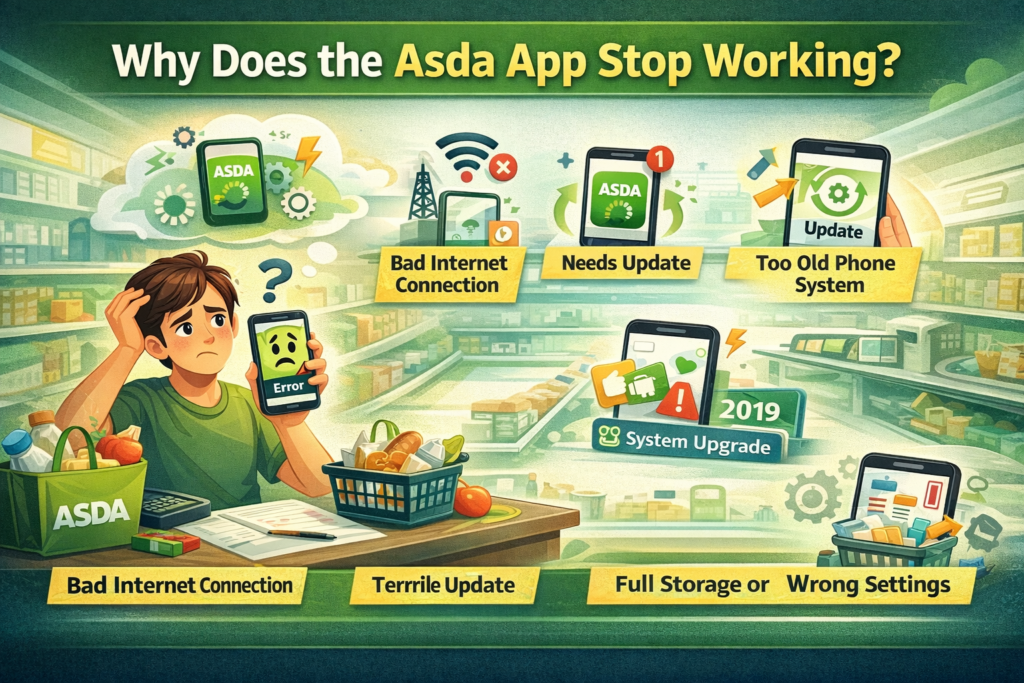
There are a few main reasons why the Asda app might not work well. First, your phone or tablet needs a good internet connection. If Wi-Fi is weak or mobile data is off, the app cannot load prices, add items to your basket, or show your account.
Second, the app itself might need an update. Asda often makes changes to the app to add new features or fix bugs. If you have an old version, it can crash or show errors. Third, your phone’s system (like Android or iOS) might be too old for the new app. Fourth, small problems like full storage, bad cache, or wrong settings can make the app act strange.
In recent times, Asda made big updates to their website and app. Some users saw more issues during these changes, like slow loading or checkout problems. But Asda works hard to fix these fast. Checking for simple fixes usually helps.
Step 1: Check Your Internet Connection
Before you do anything else, make sure your internet is working. The Asda app needs a strong connection to talk to Asda’s servers.
- Turn Wi-Fi off and on again. Or switch to mobile data if Wi-Fi is bad.
- Open a web browser and go to a simple site like google.com. If it loads fast, your internet is good.
- If you use mobile data, check if you have enough signal bars.
- Try airplane mode: Turn it on for 10 seconds, then turn it off. This refreshes your connection.
Many times, a bad connection makes the app say “Something Went Wrong” or stop loading. Fix this first and try the app again.
Step 2: Close and Reopen the App
Apps can freeze or get stuck. Closing them fully often fixes it.
On Android phones:
- Press the square or recent apps button at the bottom.
- Swipe the Asda app away to close it.
- Wait 5 seconds.
- Open the app again.
On iPhone:
- Double-press the home button (or swipe up from the bottom and hold if no home button).
- Swipe the Asda app up to close it.
- Wait a moment.
- Tap the app icon to open it.
This simple step helps when the app will not respond or shows a blank screen.
Step 3: Restart Your Phone or Tablet
Restarting your device is like giving it a short rest. It clears small problems in memory.
- Press and hold the power button.
- Choose “Restart” or “Power off” then turn it back on after 30 seconds.
- After it starts, open the Asda app.
This fixes many issues like freezing, slow loading, or error messages. Do this after closing the app.
Step 4: Update the Asda App
An old app version is a common cause of problems. Asda releases updates to make the app better and fix bugs.
Go to your app store:
- On Android: Open Google Play Store. Search for “Asda” or “Asda Groceries.”
- On iPhone: Open App Store. Search for “Asda.”
- If you see “Update,” tap it.
- Wait for the download to finish.
- Open the app after update.
If no update shows, you have the latest version. But updating often solves login issues or crashes.
Also, check if your phone’s system needs an update. Go to Settings > System > Software Update (on Android) or Settings > General > Software Update (on iPhone). Install any updates. Old phone systems can stop the app from working right.
Step 5: Clear Cache and Data (Mostly for Android)
Cache is like temporary files that help the app run faster. But sometimes they get bad and cause trouble.
On Android:
- Go to Settings > Apps > See all apps > Asda (or Asda Groceries).
- Tap “Storage” or “Storage & cache.”
- Tap “Clear cache” first. Try the app.
- If still bad, tap “Clear storage” or “Clear data.” This removes saved info, so you may need to log in again.
On iPhone, you cannot clear cache easily. Instead, offload the app: Go to Settings > General > iPhone Storage > Asda > Offload App. Then reinstall it.
This step helps with slow loading, errors during checkout, or when pages do not show.
Step 6: Uninstall and Reinstall the App
If other steps do not work, remove the app and put it back fresh.
- Find the Asda app icon on your home screen.
- Press and hold it.
- Choose “Uninstall” or drag to remove.
- Go to Google Play Store or App Store.
- Search for “Asda” and install again.
- Open it and log in with your email and password.
This is a strong fix. It removes any bad files. Many users say this solves most problems, like the app not opening or login errors.
After reinstall, make sure you have the right permissions. The app may ask for access to camera (for scanning), location (for store finder), or storage. Allow them if needed.
Step 7: Fix Login Problems
If you cannot sign in, try these.
- Check your email and password. Make sure Caps Lock is off.
- If you forgot password, tap “Forgot password” and follow steps to reset.
- Make sure your account is active. If you have not used it for a long time, check your email for messages from Asda.
- Try on another device, like a tablet or computer at asda.com, to see if it’s your phone or the account.
Some users have trouble after big updates. Reinstalling helps here too.
Step 8: Fix Checkout or Payment Issues
Checkout problems are common. You add items but cannot pay.
- Check your payment card. Is it valid? Does the address match?
- Try a different payment way, like another card or PayPal if available.
- Make sure your internet is strong during checkout.
- Clear cache or reinstall as above.
- If you see “Something Went Wrong,” wait 10 minutes and try again. It can be a short server issue.
If you have Asda Rewards linked, make sure both apps (if separate) are updated.
Step 9: Other Common Problems and Fixes
- App crashes when scanning items: Give camera permission again in phone settings.
- No points or rewards show: Wait a bit, as they can take time to update. Check on website.
- App says not compatible: Your phone is too old. You may need a new device or use the website.
- Slow loading: Close other apps running in background to free memory.
If nothing works, check if Asda has a big issue. You can look at Downdetector website for Asda to see if others report problems too.
When to Contact Asda Support
If you try all steps and the app still does not work, get help from Asda.
- Go to support.asda.com.
- Look for “Problem with website or app.”
- Or call them on 0330 053 0111 (normal call rates).
- For Rewards issues, call 0330 053 0222.
Tell them what you tried, your phone type (Android or iPhone), and the exact error. They can check if it’s on their side.
Tips to Keep the Asda App Working Well
- Update the app every few weeks.
- Keep your phone updated.
- Use good Wi-Fi when possible.
- Do not run too many apps at once.
- Clear cache now and then.
The Asda app is great when it works. It saves time and helps you find deals. With these steps, you can fix most problems fast.
This guide has many steps, but start from the top. Most people fix it by step 4 or 5. Be patient. Technology has small glitches, but they are easy to solve.
Disclaimer: This article is for informational purposes only. The steps provided are general troubleshooting tips and may not resolve all issues with the Asda app. If problems persist, please contact Asda customer support for further assistance. The author is not responsible for any issues caused by following these steps. Always ensure that your app and phone are updated to the latest versions.
Explore More
- Virgin Money App Not Working on iPhone or Android? Here’s What to Do
- Why is My Hive App Not Working? Troubleshooting Tips for iPhone, Android, and UK Users
