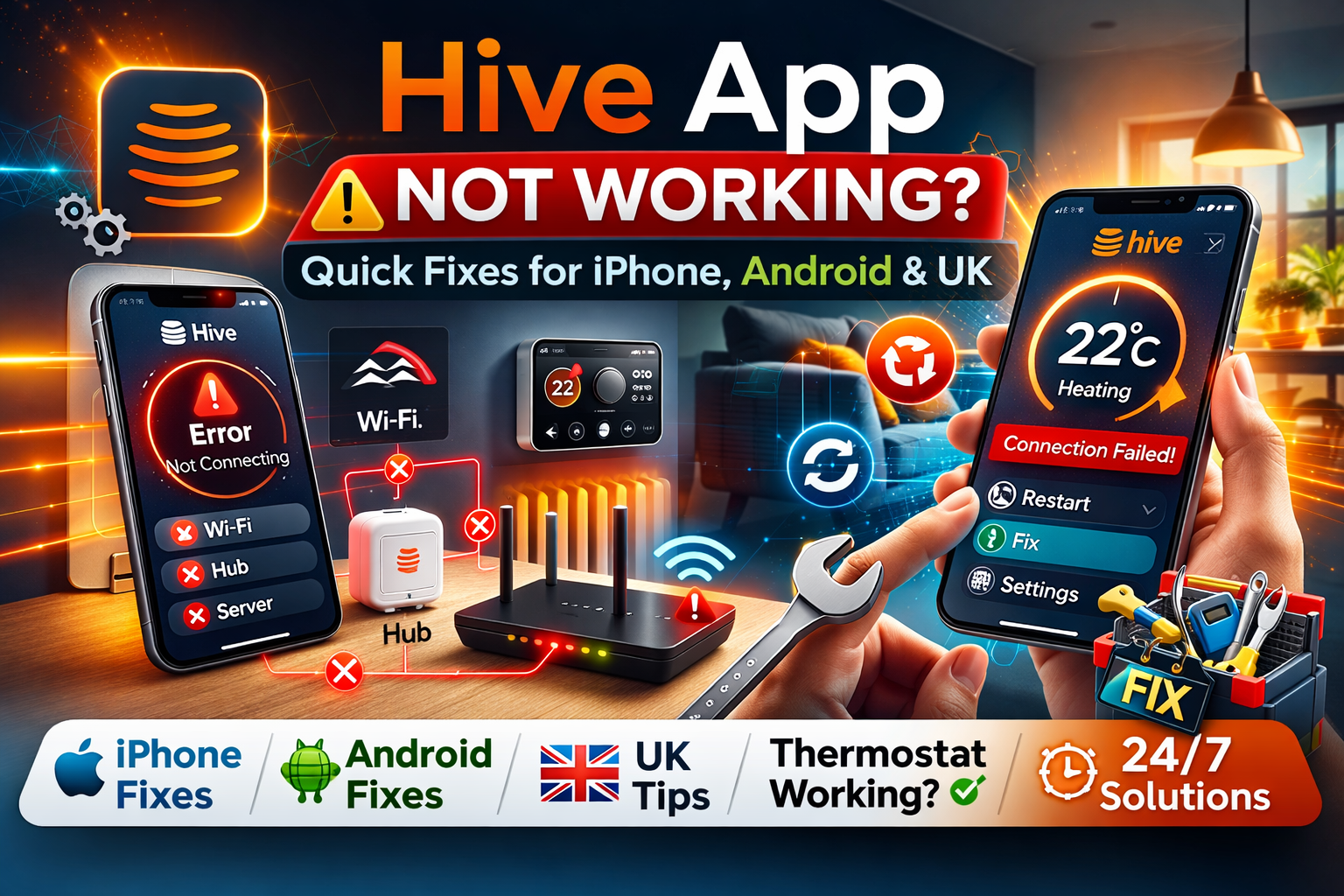
The Hive app helps you control your home heating, hot water, lights, and other smart devices right from your phone. It lets you change the temperature when you are out, set timers to save energy, and check everything is working. Most days it runs smoothly and makes home life easier. But sometimes the app stops responding, shows errors, or will not connect to your devices. This leaves you unable to adjust the heat or see what is happening.
Many people run into this problem. It can happen on iPhone devices, Android phones, or anywhere Hive is used, including the UK where the system is very popular. The issue might come up suddenly on a specific day, or it might seem like the app is broken even though your thermostat still controls the heating manually. The good news is that most of these problems have easy solutions you can try at home. You do not need special tools or expert help for the first steps.
In this article, we explain why the Hive app might stop working and give clear, simple steps to fix it. We start with general advice that works for everyone. Then we cover tips just for iPhone users, Android users, and people in the UK. We also talk about times when the thermostat works fine but the app does not, and what to do if the problem lasts a long time.
Why the Hive App Might Stop Working
The Hive app connects your phone to the Hive hub, which is a small device that links to your thermostat, boiler receiver, and other smart items. Everything talks over your home internet and Hive’s online servers. If one part has trouble, the app can fail to load, show a spinning circle, say devices are offline, or display messages like “Oops, something went wrong.”
A weak or unstable internet connection is one of the most common causes. If your Wi-Fi signal is low, drops out, or your mobile data is slow, the app cannot reach the hub or servers properly. This often happens after a router restart or during bad weather that affects signals.
An outdated app version causes many issues too. Hive releases updates to fix bugs, improve speed, and make the app work with new phone software. If you skip updates, the app might crash, freeze, or fail to show the right information like temperatures.
The Hive hub itself can lose connection. It needs steady power and a good link to your router. If the hub lights show red or amber instead of green, or if it has been offline after a power cut, the app will not see your devices.
Your phone settings sometimes block the app. It needs permission to use location, Bluetooth, or run in the background. Battery-saving modes on some phones limit apps, which can make the Hive app slow or unresponsive.
Occasionally, Hive’s servers have temporary problems. This affects many users at the same time. When it happens, the app and website might not work until the team fixes it. These outages are usually short.
In the UK, some extra factors play a role. Homes often have thick walls that weaken signals between the hub and thermostat. Broadband providers or router changes can also disrupt things.
Simple Steps to Try First on Any Phone
Before you do anything complicated, try these basic fixes. They solve the majority of app problems quickly.
Check your internet first. Open a browser on your phone and try loading a simple website. If it is slow or fails, restart your router. Unplug it from the wall for 30 seconds, then plug it back in and wait a few minutes for full connection.
Close the Hive app completely and reopen it. On most phones, swipe up or press the recent apps button, find Hive, and swipe it away. This clears small glitches that build up during use.
Restart your phone fully. Turn it off, wait about 10 seconds, and switch it back on. This refreshes everything on your device and often makes the app work again.
Sign out of the app and sign back in. If the app opens, go to the settings or account section, choose sign out, then enter your email and password again. This refreshes your link to Hive’s system.
Update the app. On iPhone, open the App Store, tap your profile picture, and look for Hive in the updates list. On Android, open Google Play Store, go to My apps & games, and check for Hive. Install any update you see, because new versions fix many connection and crash problems.
If these steps do not help, move on to more specific advice for your phone type.
Fixes for iPhone Users
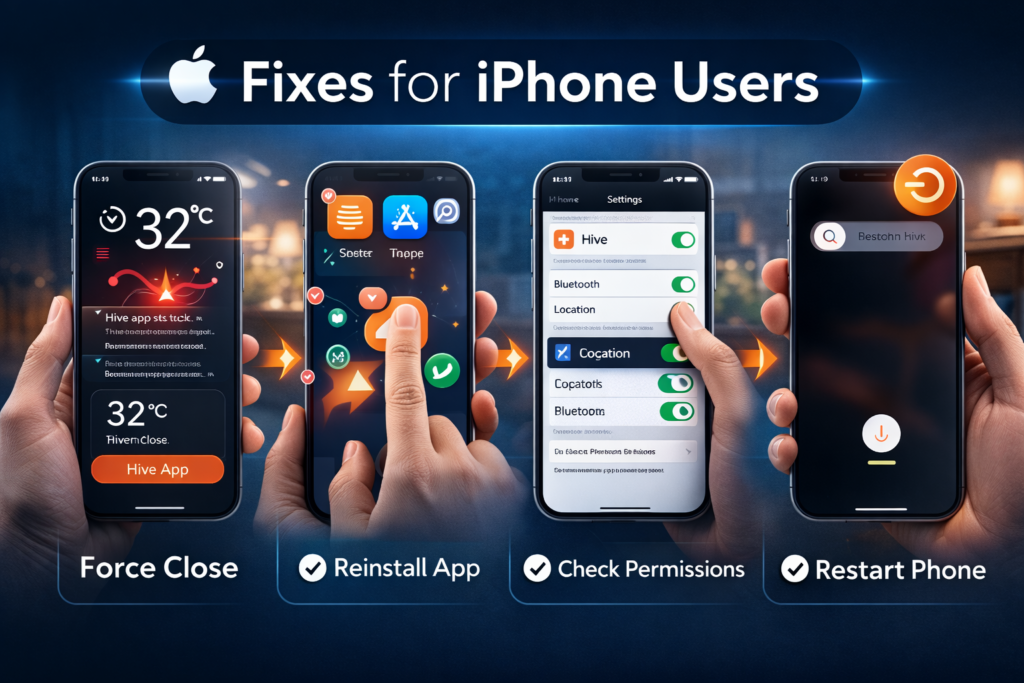
iPhones have strict rules for how apps run, so small setting changes or old software can stop the Hive app. Users often see crashes, endless loading, or wrong displays like a temperature stuck at 32°C even when it is not.
Start by force closing the app. Swipe up from the bottom of the screen and hold (or double-click the home button on older models), then swipe up on the Hive card to close it. Reopen the app to see if it loads better.
If closing does not work, delete the app and install it fresh. Press and hold the Hive icon until it wiggles, tap the remove option, and confirm deletion. Then go to the App Store, search for Hive, and download it again. Log in once it is installed. This removes any damaged files on your phone.
Check app permissions in your iPhone settings. Scroll down to find Hive in the list, and turn on location and Bluetooth if they are off. The app uses these to find and talk to your devices properly.
Some recent iOS versions have caused small bugs, like issues with widgets or Dynamic Island displays. Keeping your iPhone software and the Hive app updated usually resolves these. If you see a visual error like the wrong temperature show, avoid tapping certain screen areas until a fix comes through.
A full phone restart can clear deeper issues. Hold the side button and a volume button until the power slider appears, shut down, wait, and turn back on.
Fixes for Android Users
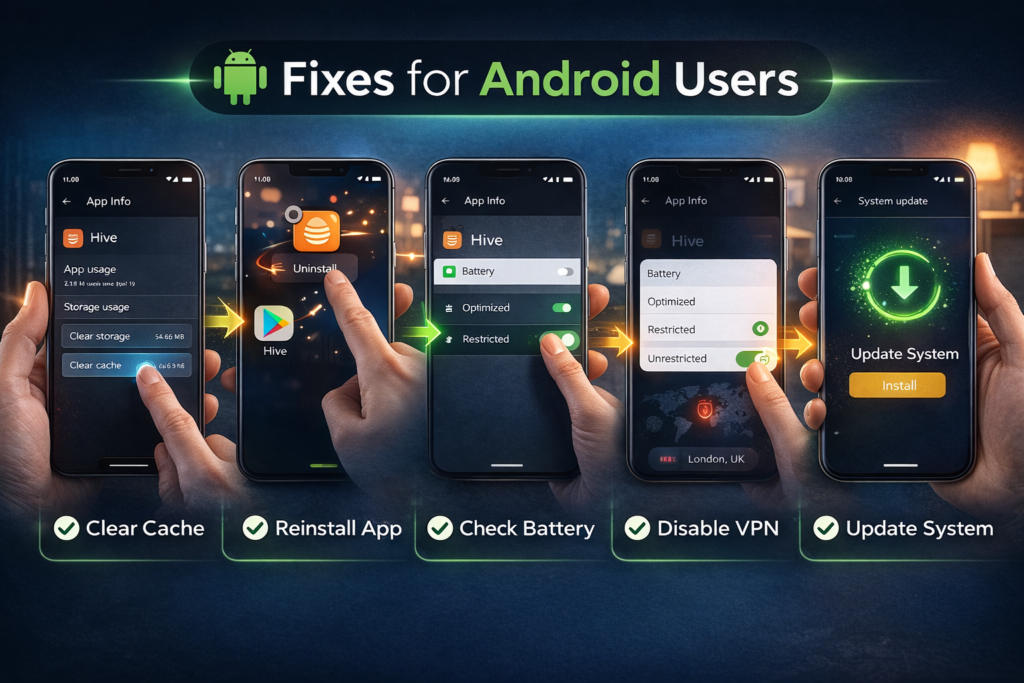
Android phones come in many brands and versions, but the problems and solutions are quite similar. Clearing stored data often helps when the app is slow, freezes, or shows errors.
Go to your phone’s Settings, then Apps or Applications, find Hive, tap it, and choose Storage. Hit Clear Cache first. This removes temporary junk without logging you out. If needed, clear data too, but that will require you to sign in again.
Uninstall and reinstall if clearing does not fix it. Long-press the Hive icon, select uninstall, then download it fresh from Google Play Store.
Restart your phone and router as described earlier.
Check battery settings, because Android often restricts apps to save power. In Settings, go to Apps > Hive > Battery, and set it to unrestricted or not optimized. This lets the app stay connected better in the background.
Turn off any VPN or firewall app temporarily, as these can block the Hive app from reaching servers.
Make sure your Android system is up to date. Go to Settings > System > System update and install anything available.
Tips Especially for UK Users
Hive is widely used across the UK, so support pages and user experiences often come from there. British homes sometimes have challenges like thick walls or older wiring that affect signals.
Visit the official Hive status page at status.hivehome.com right away. It shows if there is a known problem with the app, heating controls, or servers. If services show green and operational, the issue is likely local to your setup.
Look at the lights on your Hive hub. A solid green light means it is connected and working. Red or amber lights, or flashing, signal a problem. Unplug the hub power cable, wait 30 seconds, and plug it back in. Give it up to 10 minutes to reconnect fully.
Position the hub well for better signal. Place it high up, away from walls, metal objects, TVs, or microwaves. This helps it reach the thermostat and boiler receiver more reliably.
Check the receiver box on your boiler too. It should have green lights. If not, press any reset button on it or restart the hub again.
UK broadband changes, power cuts, or router swaps can knock the hub offline. After any change, always restart the hub. If your hub uses an Ethernet cable, make sure it is plugged in securely.
When the Thermostat Works But the App Does Not
It is common to control heating manually on the thermostat, but see the app say “offline” or refuse to make changes. This means the devices are talking to each other locally, but the internet connection to Hive servers or your phone is broken.
Restart the hub first, as this often brings everything back online.
Ensure your phone is on the same Wi-Fi network as the hub. The app needs this home network to communicate directly sometimes.
Try the app on another phone or tablet if you have one. If it works there, the problem is specific to your main device.
Sign out and back in, or reinstall the app as before.
After a hub restart, wait patiently for sync. It can take several minutes for the app to show devices as online again.
What to Do If the Problem Continues
If you have tried every step and the app still will not work, reach out to Hive support. Visit hivehome.com/support for chat, email, or phone options. They can check your account, look at hub status remotely, and guide you further.
You can also search user forums or community groups where others share similar experiences and fixes.
In rare cases, the hub, thermostat, or receiver might need repair or replacement. Support will help figure this out.
Wrapping Up
A Hive app that stops working can feel very inconvenient, especially when you want quick control over your home comfort. But most issues come from simple things like internet glitches, old app versions, or hub connections that need a quick restart. Start with the basic checks, then try phone-specific fixes, and check the status page if you are in the UK.
Following these steps one by one usually gets the app running again in minutes. Once it is fixed, you can go back to enjoying easy heating control, energy savings, and a warmer home without hassle. If problems keep coming back, think about improving your Wi-Fi setup or hub location for better long-term performance.
Disclaimer: This article is for informational purposes only. The steps provided here are common troubleshooting solutions to help resolve issues with the Hive app. While these fixes work for most users, some problems may require professional assistance or support from Hive customer service. The article does not guarantee that all issues will be resolved by following the suggested steps. For persistent problems, please contact Hive support for further help.
Explore More
- Lincoln Way App – Download & Track Vehicle Location Easily
- LemFi App – Download, Login & Reviews Guide 2026
