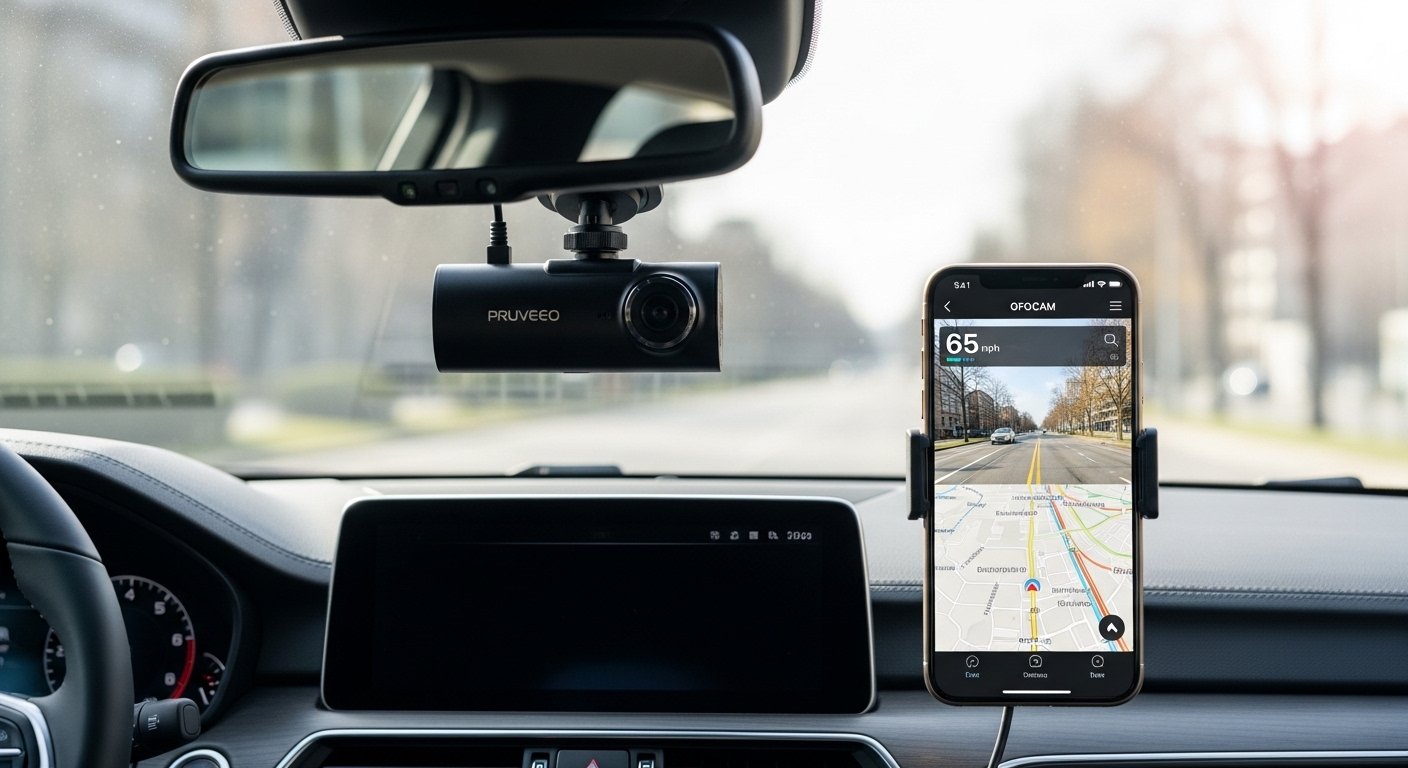
Do you have a Pruveeo dash cam? The Pruveeo dash cam app makes it super easy to use your camera from your phone. You can watch live video, see old recordings, download videos, and change settings. No need to take out the memory card every time.
This app is free. It works on iPhone (iOS) and Android phones. The real name of the app is GFGCAM (sometimes written as GFG CAM). Many people search for “pruveeo dash cam app download” but you must search for GFGCAM in the app stores.
Pruveeo is a good brand. They started in 2008. They help over one million drivers feel safe on the road. Their dash cams have clear video, good night vision, GPS, and parking mode. The app connects to many models like D30H, D90-4CH, and D904CH-MINI using WiFi.
In this article, we explain everything step by step. You will learn what the app does, how to download it, how to connect it, main features, tips, and more. Let’s start!
What Is the Pruveeo Dash Cam App?
The Pruveeo dash cam app is a free phone app made for Pruveeo dash cameras. Its name is GFGCAM. It lets you control your dash cam from your phone.
You connect your phone to the dash cam with WiFi. After connecting, you can:
- See live video from the camera.
- Watch saved videos.
- Download videos to your phone.
- Change settings like video quality or motion detection.
- Share videos fast with friends or insurance.
It is very helpful. For example, if you have an accident, you can quickly show the video. Or if you want to see a fun road trip clip, you can download it easily.
The app works best with some Pruveeo models. Check your dash cam box or manual. Common models are D30H (front and inside), D90-4CH (4 cameras: front, rear, left, right), and D904CH-MINI.
Many drivers love it because it saves time. You do not need a computer. Everything happens on your phone.
Why Use the Pruveeo Dash Cam App?
Dash cams record the road all the time. But to see or save videos, it can be hard without an app. The pruveeo dash cam app fixes this.
Here are simple reasons to use it:
- Watch live what the camera sees right now.
- Play old videos from any day.
- Save important clips to your phone.
- Share videos by email, WhatsApp, or social media.
- Change camera settings from your phone.
- Works when the car is parked (for safety).
It is great for Uber drivers, taxi drivers, families, or anyone who drives a lot. The app helps you feel safe and ready if something happens.
How to Download the Pruveeo Dash Cam App for iPhone and iOS
Do you have an iPhone or iPad? Downloading the pruveeo dash cam app iphone or pruveeo dash cam app ios is easy. Follow these steps:
- Open the App Store on your iPhone.
- In the search box, type GFGCAM (do not type “Pruveeo” – use GFGCAM).
- Find the app. It is free and made for dash cams.
- Tap Get to download it.
- Wait for it to finish. Then open the app.
The app is safe. It comes from the official store. After download, you can connect it to your dash cam (we explain next).
Many iPhone users say it works well. The live video is clear. You can save videos to your Photos app fast.
How to Download the Pruveeo Dash Cam App for Android
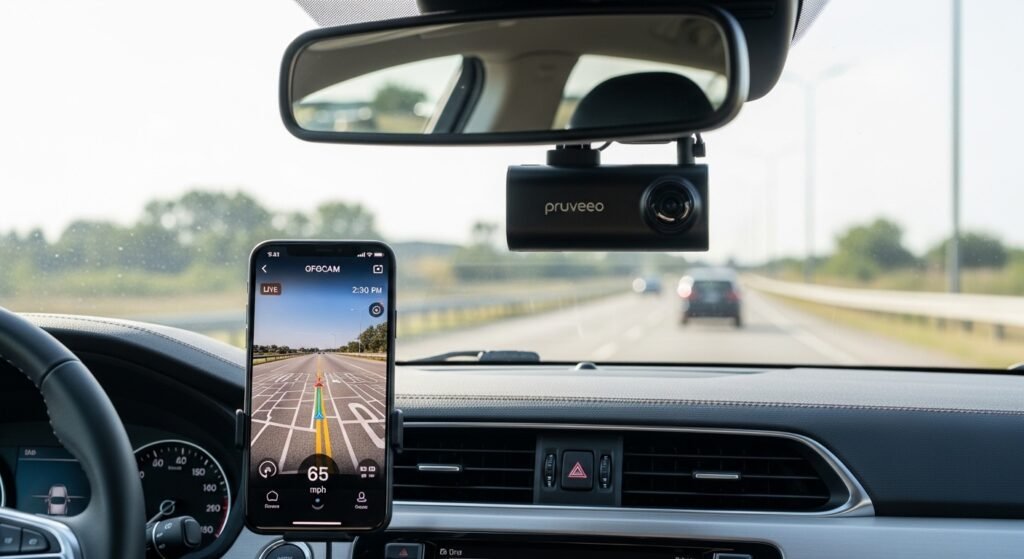
For Android phones, it is the same easy way. Here is how to get the pruveeo dash cam app for android:
- Open the Google Play Store on your phone.
- Search for GFGCAM.
- Find the correct app (look for dash cam in the name or picture).
- Tap Install to download it free.
- When done, open the app.
It works on most Android phones. You get the same features as on iPhone. Android users like how easy it is to move videos to other apps or Google Drive.
Tip: Only download from Google Play or App Store. This keeps your phone safe from fake apps.
How to Connect the App to Your Pruveeo Dash Cam
Connecting is the key step. The app uses WiFi from the dash cam. It is simple. Here are the steps:
- Turn on your Pruveeo dash cam in the car.
- Turn on WiFi mode on the dash cam. Some models do it automatically. Others need you to press a button. Check your manual for how.
- On your phone, go to Settings > WiFi.
- Look for the dash cam’s WiFi name (it often starts with a code or “Pruveeo”).
- Tap it to connect. The password is usually 12345678 (check your manual if different).
- Open the GFGCAM app.
- Tap the connect button.
- Wait a short time. You will see “WiFi connected” and the live video.
Now you can use the app! If it does not connect, try these:
- Make sure no other phone is connected.
- Restart the dash cam and your phone.
- Stay close to the dash cam.
This WiFi is direct. It does not use your mobile data. It is safe for short use.
Main Features of the Pruveeo Dash Cam App
The app has many good features. Here they are in simple words:
- Live View – See real-time video from your dash cam on your phone. Good for checking if the camera is set right.
- Playback – Watch saved videos. Choose by date or time.
- Download – Save any video to your phone with one tap.
- Settings – Change things like video size, loop recording, or parking mode.
- File Manager – Delete old videos or protect important ones.
- Share – Send videos to others fast.
For 4-channel models like D90-4CH, you see all views: front, rear, left, right. You can switch or see them together.
If your dash cam has GPS, the app shows speed, location, and map in videos.
Step-by-Step Guide to Using the App Every Day
After you connect, here is how to use it:
- See Live Video – Open app, connect. The screen shows what the camera sees now. Use this when parked to test.
- Watch Old Videos – Go to playback. Pick a date. Play the video. Pause or zoom if needed.
- Download a Video – Choose the clip. Tap download. It goes to your phone. Now you can edit or share it.
- Change Settings – Find the gear icon. Turn on better night vision, make motion alerts stronger, or set parking mode.
- Protect Videos – Mark important clips as locked. This stops the camera from deleting them when the card is full.
After use, disconnect WiFi. This saves battery on your phone and dash cam.
Tips for the Best Experience
Here are easy tips to make the app work great:
- Use a good microSD card (fast one, like up to 128GB or more – check your model).
- Update your dash cam if Pruveeo has new software (check their website sometimes).
- Only use live view when the car is stopped. Do not watch while driving.
- If WiFi is slow, go closer to the dash cam.
- Download videos often on long trips to keep space free.
- Read your dash cam manual for special WiFi tips for your model.
Users say the app is good most of the time. But WiFi can be weak if far away or with other signals around.
Common Questions About the App
Is the app free? Yes, totally free. No ads or payments.
Does it work with all Pruveeo dash cams? No, best for D30H, D90-4CH, D904CH-MINI. Check your model.
Do I need internet? No, it uses direct WiFi from the dash cam.
Is it safe to download? Yes, get it from App Store or Google Play only.
What is the WiFi password? Usually 12345678. See your manual.
Can I use it for parking mode videos? Yes, connect when parked and see recordings.
Why Pick Pruveeo and This App?
Pruveeo makes strong dash cams. They have clear video (1080P or better), night vision, GPS, and more. The pruveeo dash cam app makes them easy to use.
Many people trust Pruveeo. They have helped millions of drivers since 2008. Reviews say the app helps a lot in real life – like showing proof after an accident.
Compared to other brands, this app is simple, free, and does what drivers need.
If you want a dash cam with an easy app, Pruveeo is a great choice.
Final Words
The Pruveeo dash cam app (GFGCAM) is easy to get for iPhone, iOS, and Android. Search GFGCAM in your app store today. Download it, connect to your dash cam, and enjoy better control.
It helps you stay safe on the road. You can see, save, and share videos fast. Drive safe!
Disclaimer:
This article is for information only. We are not promoting, selling, or earning money from the Pruveeo dash cam or the app. This is not an affiliate or sponsored post. We do not guarantee that the app or dash cam will work perfectly for everyone. Use it at your own risk. We are not responsible for any problems, damage, or loss that may happen from using the app or dash cam. Always follow the official instructions and safety rules.
Explore More
- The Sneaky Link App: What Is It? Free Download, iPhone Version, Reviews & Jim Jones Connection
- Koalafi App – Download, Login & Complete User Guide
- Thunder TV App: Download, Firestick Setup, Free Access, Login, Reviews & Fix Not Working Issues
