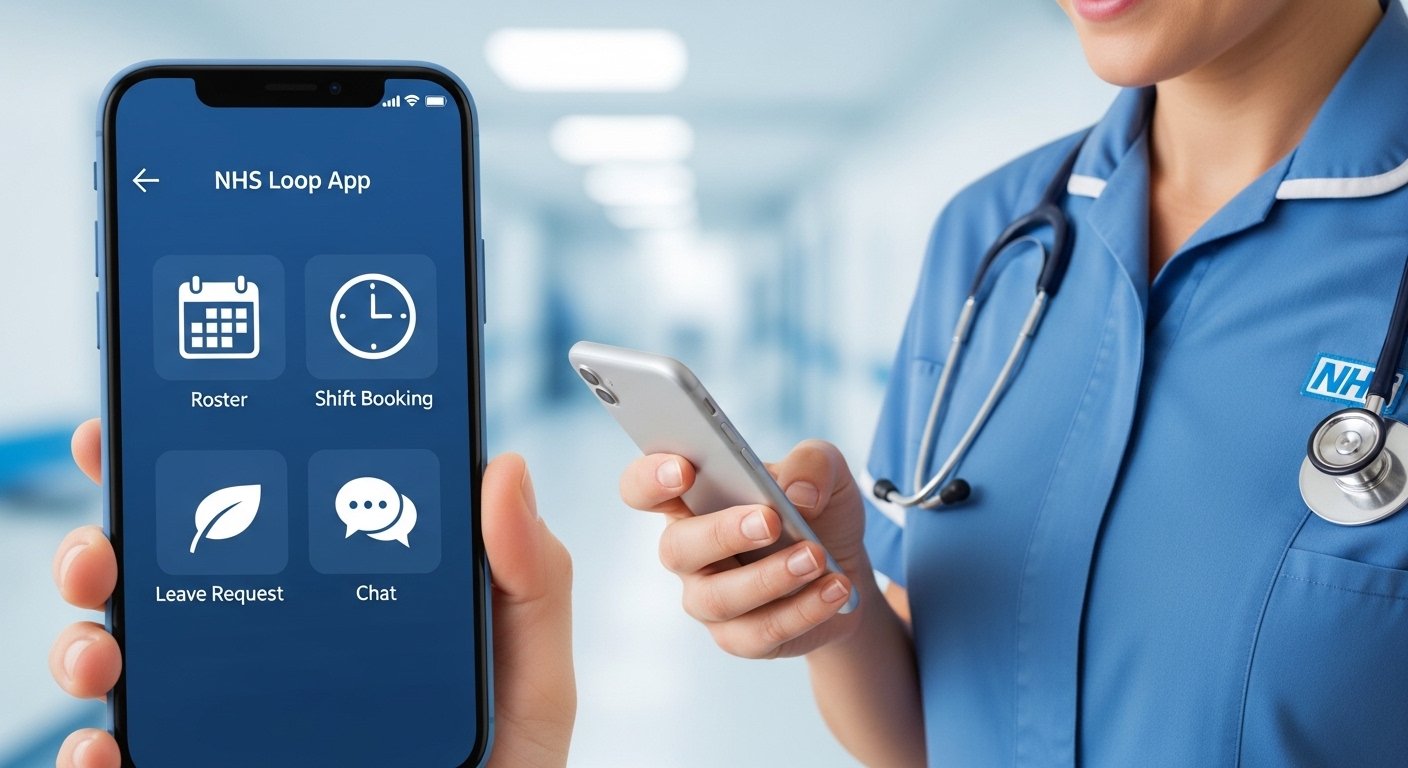
The Loop App NHS is a helpful mobile application made for NHS staff (health and care workers in the UK). It is also called Allocate Loop. This app helps NHS employees manage their work life easily from their phone. It is not for patients or diabetes management. It is for staff to see shifts, book leave, read news from their trust or hospital, chat with team members safely, and handle work tasks without needing a computer.
Many NHS trusts across the UK use this app to make rostering (shift planning) and communication simpler. It connects to systems like HealthRoster or Employee Online. The app is secure, easy to use, and free to download. It saves time and keeps everyone in the loop with work updates.
Why NHS Staff Use the Loop App
NHS workers often have busy schedules with changing shifts. The Loop app NHS lets you do many things on your phone anytime, anywhere. Here are some key benefits:
- View your roster and upcoming shifts quickly.
- Book extra shifts or bank shifts when needed.
- Request annual leave, study leave, or other time off.
- See news and announcements from your NHS trust or organisation.
- Chat with colleagues without sharing personal phone numbers.
- Send anonymous reports if you have concerns about safety or team issues.
- Stay connected even when you are not at work.
This makes work-life balance better for nurses, doctors, support staff, and other healthcare workers. It reduces the need to call or email for simple things like checking shifts.
How to Download the Loop App for NHS
Downloading the Loop app NHS is very simple. The app is available on both iPhone and Android phones.
- For iPhone users (Apple devices) Open the App Store on your phone. In the search bar, type “Allocate Loop” or “Loop Allocate”. Look for the app made by Allocate Software (or now under RLDatix). The icon is usually blue or has a loop symbol. Tap Get or the download button. It is free. Wait for it to install.
- For Android users Open the Google Play Store. Search for “Allocate Loop”. Find the app by Allocate Software. Tap Install. It is free and safe.
Important note: Do not download any app called just “Loop” without “Allocate” if you are NHS staff, as there are other apps with similar names (like for diabetes). Always check the developer is Allocate Software or RLDatix. The official name is Allocate Loop.
After download, you need to set up an account. You can also use the web version at https://web.loop.allocate-cloud.co.uk/loop if you prefer a computer, but the mobile app is best for on-the-go use.
Step-by-Step Guide to Sign Up and Create Your Loop Account
Before you start, make sure you have:
- A working email address (many NHS trusts suggest using your personal email for easier access, but some use NHS email).
- Your Employee Online ID or HealthRoster login details (ask your manager, HR, or IT team if you do not have them).
- A stable internet connection.
Follow these easy steps:
- Open the Allocate Loop app after installing it. You will see a welcome screen.
- Tap on Sign Up (or “Create Account” if shown). Do not tap Log In yet if this is your first time.
- Enter your email address. This will be your username for login later. Create a strong password. Type your first name and last name.
- Tap Sign Up or Create Account. The app will send a verification email to your email address. Go to your email inbox (check spam/junk if not seen). Open the email from Loop/Allocate and click the verification link or enter the code if asked.
- After verification, go back to the app. Now tap Log In or continue.
- Enter your email and password again to log in.
- The important step: Connect to your organisation. Tap Connect to my Organisation or similar button. Search for your NHS trust or hospital name (for example, “East London NHS Foundation Trust”, “NHS Lothian”, “Queen Elizabeth Hospital King’s Lynn”, etc.). Select your organisation from the list. It may ask for your Employee Online ID (username) and password. Enter them correctly. Tap Connect or Confirm.
- Once connected, your account is ready! You should see your roster, newsfeed, and other features.
If you face any issue during sign up, like not finding your organisation, contact your NHS trust’s IT helpdesk, HR, or check their intranet for special instructions. Some trusts have their own guides or videos.
How to Log In to Loop App NHS (loop app nhs login)

Logging in is quick once your account is set up.
- Open the Allocate Loop app.
- On the login screen, enter your email address (the one you used to sign up).
- Enter your password.
- Tap Log In.
- If asked, you may get a code sent to your phone or email for extra security. Enter it.
You will then see the main screen with tabs like Roster, News, Chat, Leave, etc.
Tips for login problems:
- Forgot password? Tap Forgot Password and follow the reset link sent to your email.
- Wrong organisation? Log out and try connecting again.
- App crashes? Update the app in your store or restart your phone.
- No roster showing? Your manager may need to approve/publish the roster first. Ask them.
Main Features of the Loop App for NHS Staff
After login, explore these helpful parts:
- Roster View — See your shifts for weeks ahead. Check start/end times, location, and type of shift.
- Shift Booking — Look for open shifts and book them directly if allowed.
- Leave Requests — Apply for holiday or study days. See your remaining leave balance.
- Newsfeed — Read important updates, policy changes, or training info from your trust.
- Team Chat — Message colleagues safely within the app. No need for personal WhatsApp groups.
- Profile — Update your details, photo, or preferences.
The app is designed to be simple, with clear buttons and menus.
Common Questions About Loop App NHS
Is the Loop app only for certain NHS trusts? Yes, not every NHS place uses it yet, but many do, especially those with Allocate Software’s rostering system.
Is it safe and private? Yes, it is very secure. Messages stay in the app, and it follows NHS data rules.
Can patients use it? No. This is only for NHS staff. Patients use the NHS App for their health records.
What if my trust does not use Loop? Ask your manager about rostering tools. Some use other systems.
How to update the app? Go to App Store or Play Store and check for updates regularly.
Tips to Get the Most from Loop App
- Check the app daily for new shifts or news.
- Set notifications so you get alerts for messages or roster changes.
- Use it on Wi-Fi to save data.
- Keep your password safe and change it if needed.
- If stuck, look for your trust’s intranet page on Loop or watch tutorial videos (many trusts have them).
The Loop app NHS makes life easier for thousands of healthcare workers every day. It helps you stay organised, connected, and informed without extra stress.
If you are an NHS staff member and your trust uses this app, download it today using loop app nhs download search in your store. For loop app nhs login, just follow the steps above.
This guide is based on real use in many UK NHS organisations. Always check with your own trust for any small differences in setup.
Disclaimer:
This article is only for information. It is not promotional and does not earn any money for us (no affiliate links). We are not connected to the NHS, Allocate Loop, or RLDatix. We try to give correct and helpful guidance, but we cannot guarantee it is always perfect. Always check with your own NHS trust or IT team for official instructions. Use the app at your own risk.
