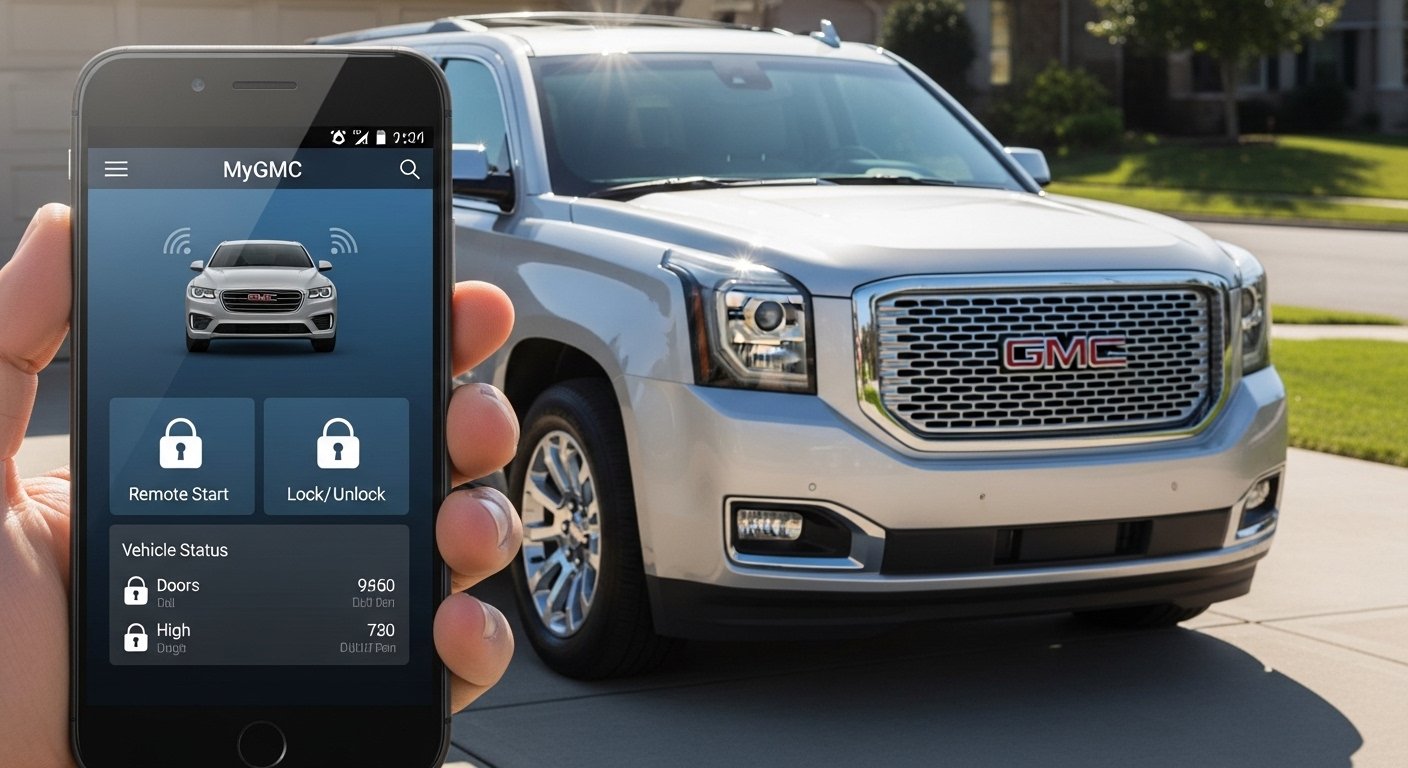
The MyGMC app is a helpful tool for people who own GMC trucks or SUVs. It lets you use your Android phone to control your vehicle from far away. You can start the engine without being inside the car. You can lock or unlock the doors. You can check how much fuel is left or if the tires have good air pressure. This app makes life easier, especially on hot days in Karachi when you want a cool car or on cold mornings when you want a warm one.
In this guide, everything is explained in very easy English. We tell you step by step how to download the app, how to connect your vehicle, how to use remote start, how to fix problems, and answers to common questions like cost and OnStar. All information is correct and based on the official GMC and OnStar websites for 2025 and 2026 models.
What Is the MyGMC App?
The MyGMC app is a free app made by General Motors. It works with your GMC vehicle using OnStar. OnStar is a special system inside your vehicle that connects it to the internet.
With the app, you can do many useful things. You can start the engine from your home so the car gets warm or cool before you sit inside. You can lock the doors if you forgot. You can see how much fuel you have, how healthy the oil is, how much air is in the tires, and how many kilometers the car has driven. The app can show you exactly where your parked vehicle is and guide you to it. If you have trouble on the road, you can ask for help with one touch.
Newer GMC vehicles (2025 and later) get many of these features free for 8 years. Older vehicles may need a paid plan sooner. The app works very well on models like Sierra, Yukon, Terrain, and Acadia.
How to Download the MyGMC App on Android
Downloading the app is free and very simple.
Open the Google Play Store on your Android phone. Type “myGMC” in the search box. Choose the official app made by General Motors. It has the red GMC logo and many good reviews (about 4.7 stars).
Tap the Install button. The app is small, so it downloads fast. After it finishes, open the app. Your phone should have Android 8.0 or a newer version to work best.
When the app opens, sign in with the email you used when you bought your GMC. If you do not have an account yet, the app will help you create one in a minute or two.
Does the MyGMC App Need OnStar?
Yes, most of the best features need OnStar. OnStar is what lets your vehicle talk to your phone over the internet.
Some small things, like reading the owner’s manual or calling for roadside help, work without paying. But remote start, locking doors from far away, checking vehicle information, and seeing the location all need an active OnStar plan.
For vehicles from 2025 and newer, OnStar Basics is free for 8 years. This includes many remote features and safety help. If your vehicle is older, you may need to pay earlier.
Without OnStar, the app does not do much. To enjoy everything, make sure OnStar is active in your vehicle.
How Much Does the MyGMC App Cost?
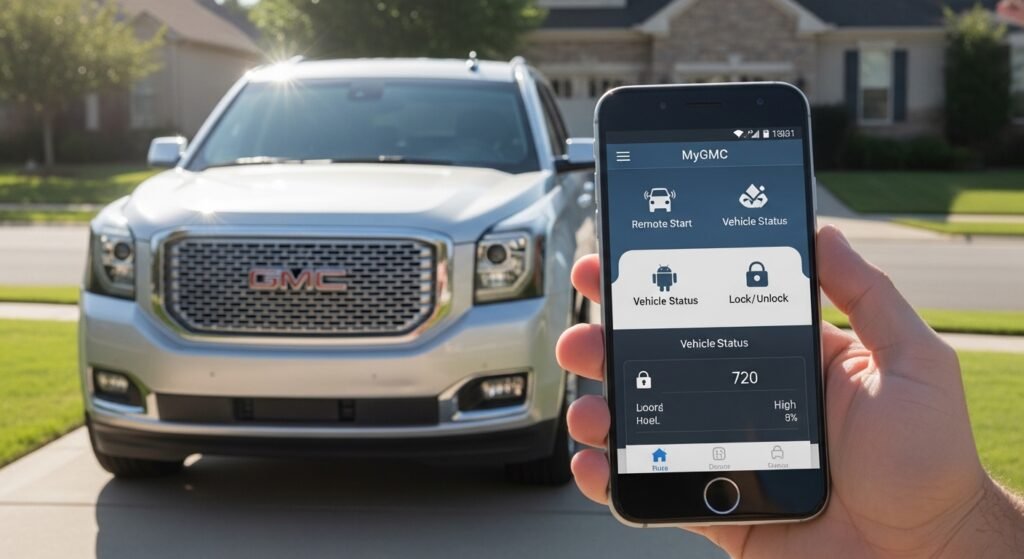
The app itself is completely free. You pay nothing to download it or use basic parts.
The powerful features (like remote start and lock/unlock) come from OnStar plans. New vehicles often get 8 years of basic OnStar free. After free time ends, you pay for a plan.
Plans usually cost between $15 and $35 per month. Lower plans give simple remote control. Higher plans add things like Wi-Fi in the car and extra safety alerts.
You can pay every month or every year (yearly is sometimes cheaper). Check your exact price in the app or on the OnStar website. Many owners say it is worth the money because remote start feels so good in hot or cold weather.
How to Connect Your Vehicle to the MyGMC App
Connecting is quick and easy.
Open the app and sign in. Agree to the rules if the app asks.
Tap the account button (usually your initials at the top). Choose “Add Vehicle”.
Type your vehicle’s VIN number. This is a 17-letter-and-number code. You can find it on the dashboard near the front window, on the driver’s door sticker, or in your vehicle papers.
On some new vehicles, it adds by itself if OnStar is working. You might also see a QR code on the car screen to scan with your phone.
The app talks to OnStar. If everything is okay, your GMC shows up in the app. You will see things like fuel level right away.
Use strong internet (Wi-Fi is good for the first try). If it does not connect, close the app and open it again or check your OnStar plan.
How to Use Remote Start with the MyGMC App
Remote start is one of the best parts of the app. It lets you turn on the engine from far away.
Open the app. Look for the remote start button on the main screen (it looks like a car with heat or cool waves).
Tap the button. The app will say “Sending” and then “Started” when it works.
The engine runs for 10 to 15 minutes and then turns off by itself. You can choose if you want heat or cool air.
You can change some settings inside your vehicle too: go to Settings > Vehicle > Remote Lock, Unlock, Start.
Remote start needs a good OnStar plan and strong signal where your vehicle is parked. Never use it in a closed garage because it is not safe.
What to Do When the MyGMC App Is Not Working
Sometimes the app stops working properly. It may not connect, or commands get stuck.
First, close the app completely and open it again. Sign out and sign in again.
Check that your phone has good internet. Try Wi-Fi or mobile data.
Go to the Play Store and update the app to the newest version. Updates often fix problems.
Restart your phone.
You can also clear the app cache: go to phone Settings > Apps > myGMC > Storage > Clear Cache.
If it still does not work, delete the app, restart your phone, and install it again.
Other reasons for problems are a weak car battery, bad signal at the car’s location, or an old OnStar plan. Check your plan in the app.
For more help, press the blue OnStar button inside your vehicle or call 1-888-4ONSTAR any time.
How to Remove a Vehicle from the MyGMC App
If you sell your GMC or buy a new one, you should remove the old vehicle from the app.
Open the app and tap the account button.
Find “Manage Vehicles” or “My Garage”.
Choose the vehicle you want to remove. Tap “Remove Vehicle”. Pick a reason, like “I sold it”.
Confirm, and it will disappear from your list.
If you have trouble, call OnStar to help. Removing the vehicle does not stop any payment—you need to talk to OnStar about that separately.
Why the MyGMC App Is So Useful
The app makes your GMC feel modern and easy to use. You can cool the car on hot Karachi days before you leave work. You can warm it on cold mornings from your bed. You always know if something is wrong, like low fuel or tire pressure. It also helps keep you safe with quick help and location tracking.
Most owners start using it every day after they set it up once. It feels very natural and saves time.
Quick Tips to Use the App Better
Always update the app when a new version comes.
Use good internet when you send commands.
Check your OnStar plan from time to time so it does not stop.
If you need more help, visit gmc.com or onstar.com.
Download the MyGMC app today, connect your vehicle, and enjoy how simple and comfortable it makes driving. Stay safe on the road!
Disclaimer:
This article is only for information. It is not an ad or affiliate. We are not connected to GMC or OnStar. Information may change, so check with them for the latest details. We are not responsible for any problems from using this information.
Explore More
- Bebird App – Download Ear Cleaner App for Android & Ear Wax Removal
- Servir App – Easy & Fast Service Booking on Your Phone
- Stream East App – Watch Live Sports & Entertainment Easily Online
