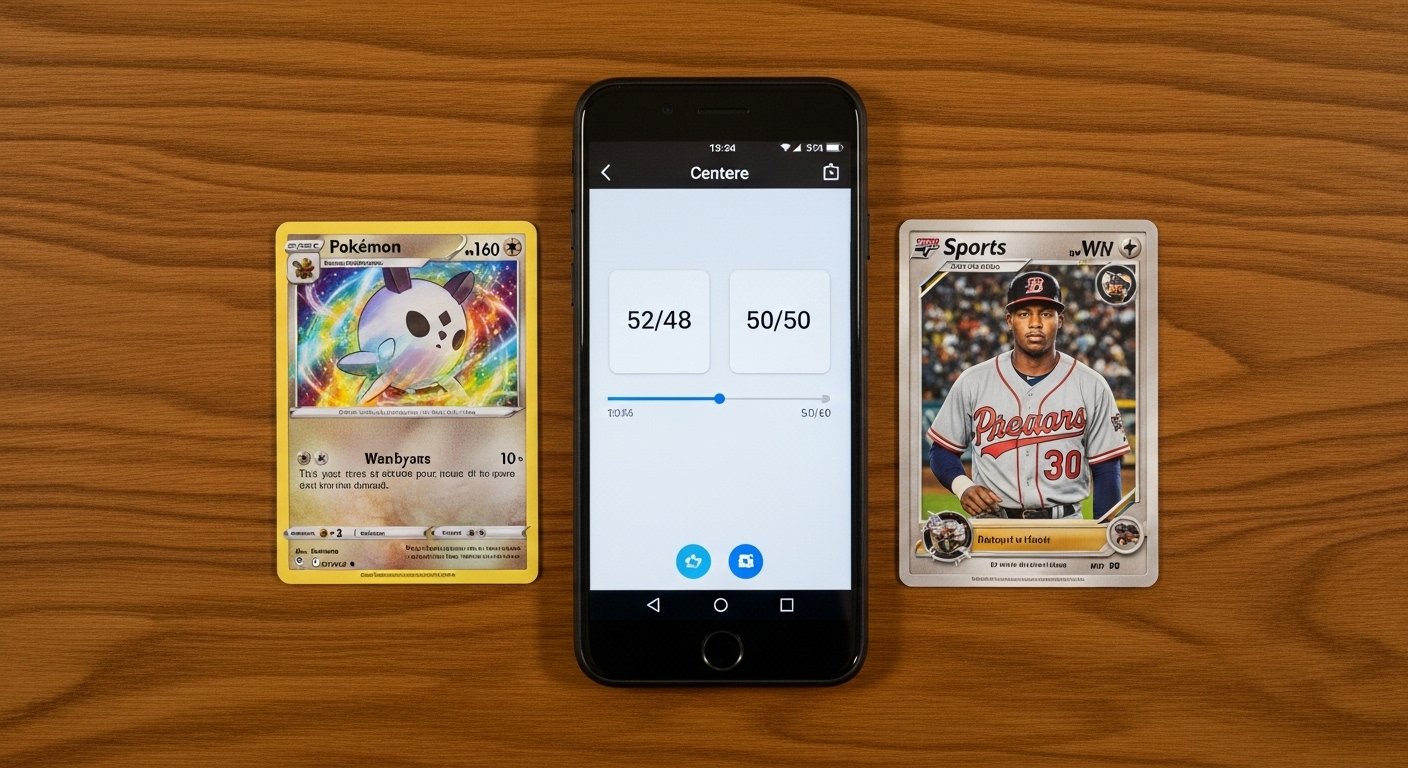
If you collect Pokémon cards or sports cards like baseball, basketball, or football cards, you know how important good centering is. Centering means how even the borders (white spaces) are around the picture or design on the card. If the borders are not even, the card looks off-center. This can lower the grade when you send it to companies like PSA, BGS, SGC, or others.
A good card centering app on your Android phone makes this check very easy and fast. You do not need to guess with your eyes or buy expensive tools. Just use your phone camera, and the app tells you the exact centering numbers, like 50/50 or 55/45. This helps you decide if your card is worth grading for high value.
In this guide, we explain what centering is, why it matters for Pokémon and sports cards, the best card centering app Android options, and a full step-by-step how to use card centering app for both Pokémon and sports cards. This will help you save time and money.
What Is Card Centering and Why Does It Matter?
Card centering is simple. Look at your card from the front. Measure the white border on the left and right sides. Then do the same for the top and bottom. Centering is shown as two numbers, like left/right and top/bottom.
For example:
- 50/50 means perfect centering. Left and right borders are equal.
- 55/45 means the left side has 55% of the total border space, and right has 45%. It is a little off but still good for many grades.
- 60/40 or worse can hurt the grade a lot.
Grading companies have rules:
- PSA (Professional Sports Authenticator) now allows up to about 55/45 on the front and 75/25 on the back for a Gem Mint 10 (as of recent updates).
- BGS (Beckett Grading Services) is stricter. It wants close to 50/50 or better for high grades like Black Label 10.
- SGC and others are in between.
Bad centering lowers the grade. A card with great surface, corners, and edges but poor centering might get only an 8 or 9 instead of 10. That can mean hundreds or thousands less in value for rare Pokémon cards like Charizard or valuable sports cards like rookie Michael Jordan.
Many collectors use a card centering app to check before paying for grading. It gives you confidence and helps avoid bad submissions.
Why Use a Card Centering App on Android?
Old ways to check centering:
- Use a ruler (slow and not exact).
- Eyeball it (easy to make mistakes).
- Buy plastic centering tools (good but you need good light and still manual).
A card centering app Android is better because:
- It uses your phone camera or photo.
- Many use AI (smart tech) to find borders automatically.
- It gives numbers fast.
- Some show possible grades from PSA, BGS, etc.
- Free or low cost.
- Works for Pokémon, Yu-Gi-Oh!, Magic, Lorcana, baseball, basketball, football, and more.
- You can check many cards quickly.
In 2026, Android apps for this are getting better with AI help. They make pre-grading fun and smart.
Best Card Centering Apps for Android in 2026
Here are some top card centering app choices for Android that work well for Pokémon and sports cards:
- Card Centering Calculator (available on Google Play) This is one of the most popular. It has auto-scan with AI to detect centering fast. You get ratios like 55/45 and possible max grades for PSA, BGS, CGC, SGC, TAG. It works for all cards including Pokémon and sports. Many collectors say it is accurate and easy.
- Card Centering Tool : Grader AI This app gives full control. You can use auto or manual lines to measure. It supports many card types like Pokémon, sports (NBA, MLB, NFL), and others. Good for exact work.
- Card Centering – Card Grading Simple and fast. It analyzes photos and gives centering scores. Great for beginners.
- Other options: Some apps like Gradeon or similar tools are on Play Store. Also, free online tools (like Edge Grading centering calculator) work in your browser if you do not want to download.
Pick one with good reviews and updates. Always take clear photos for best results.
How to Use Card Centering App – Step-by-Step Guide
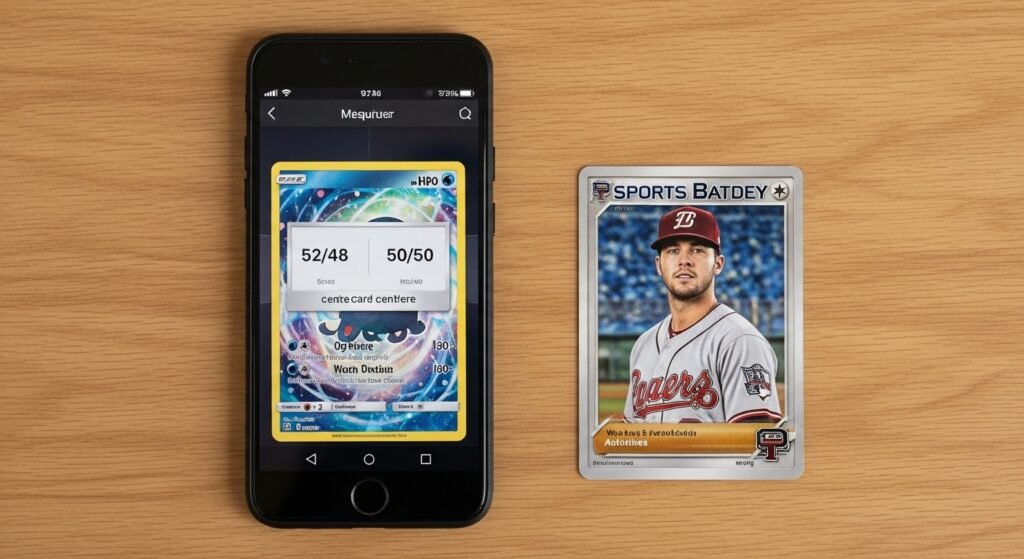
Here is an easy guide on how to use card centering app on Android. We use a popular one like Card Centering Calculator as example, but steps are similar for most apps.
Step 1: Download and Install the App Go to Google Play Store on your Android phone. Search for “card centering calculator” or “card centering tool”. Download a good one with high stars (4+). Open the app and allow camera access (needed for scanning).
Step 2: Prepare Your Card and Phone Take your card out of sleeve or top loader if possible (for best scan). But many apps work with sleeved cards too. Put the card on a flat, plain background (white or black table works best). No shadows. Use good light – natural daylight or bright room light. Hold phone straight above the card (90 degrees, not angled). This is very important for accuracy.
Step 3: Open the Centering Tool in the App Most apps have a main tab called “Centering Calculator” or “Scan Card”. Tap it. You see options: “Scan Live” (use camera now) or “Upload Photo” (pick from gallery).
Step 4: Scan or Upload the Card For live scan:
- Point camera at card.
- Make sure card fills most of screen.
- App may auto-detect edges.
- Hold steady until it says “Scan Complete” or similar.
For upload:
- Take a clear photo first with your camera app.
- Crop if needed.
- Upload to the app.
Step 5: Let the App Measure Centering Many apps use AI to auto-find borders. It draws lines or boxes on left, right, top, bottom. Wait a few seconds. You see results like:
- Front Left/Right: 52/48
- Front Top/Bottom: 50/50
- Back (if you scan back): similar numbers.
Some apps let you move lines manually if auto is not perfect. Just touch and drag.
Step 6: Check Possible Grades Good apps show: “This centering could get PSA 10 if other parts are perfect.” Or “BGS may give 9.5 due to 60/40.” This helps you know if to grade or sell raw.
Step 7: Scan the Back Side Flip the card. Repeat steps 4-6 for the back. Back centering matters a lot for high grades (PSA allows worse back centering than front).
Step 8: Save or Share Results Many apps let you save the report or screenshot. Keep it for your records. Useful when selling or submitting to grading.
Tips for Best Results in How to Use Card Centering App
- Always take photo from directly above. Angled photos give wrong numbers.
- Use solid color background (no patterns).
- Remove sleeve if possible, but test both ways.
- Check in good light – no glare or shadows.
- For thick cards or holo, some apps handle better.
- If auto fails, use manual mode.
- Test with a known good card first to learn.
How to Use Card Centering App for Pokémon Cards Pokémon cards have bright art and holo patterns. Apps work great because borders are clear. Follow the steps above. For rare pulls like from packs, check centering fast before sleeving. Many Pokémon card centering app users love auto AI because it detects even small differences. If centering is 55/45 or better front, and good back, it has high grade chance.
How to Use Card Centering App for Sports Cards Sports cards like Topps baseball or Panini basketball have player photos. Borders can be tricky if design bleeds. But apps handle them well. Scan front (player side) and back (stats). Sports collectors use this to check rookies before grading. Apps show if it meets PSA or BGS rules.
Common Mistakes to Avoid
- Bad lighting – causes shadows and wrong readings.
- Angled phone – makes borders look uneven.
- Dirty card or sleeve – app may misread.
- Not scanning back – back centering is key.
- Trusting eye only – apps are more exact.
Benefits of Using a Card Centering App
- Save money: No bad grading submissions.
- Fast: Check 10 cards in minutes.
- Learn: Understand why some cards grade high.
- Fun: Makes collecting exciting.
- Value: Know real worth before selling.
Final Thoughts
A card centering app for Android is a must-have tool for any Pokémon or sports card collector in 2026. It takes the guesswork out of centering and helps you make smart choices. Download one today, follow this how to use card centering app guide, and start checking your collection. You may find a hidden gem ready for a high grade!
If you have questions or your favorite app, share in comments. Happy collecting!
Disclaimer:
This guide is for information only. We are not selling, promoting, or making money from any app mentioned. We are not affiliated with any company, brand, or app. Using the apps is your choice, and we are not responsible for any problems, mistakes, or losses you may have. Always check apps and follow instructions carefully.
Explore More
- Arcbatwork App: The Complete Guide to Features, Benefits & Setup
- Findom App: What It Is, How It Works, Setup Guide & Android/iPhone Download
- Tuambia App Descargar Gratis – Guía Completa de Login y Descarga 2026
